- 20 Dec 2025
- Elara Crowthorne
- 0
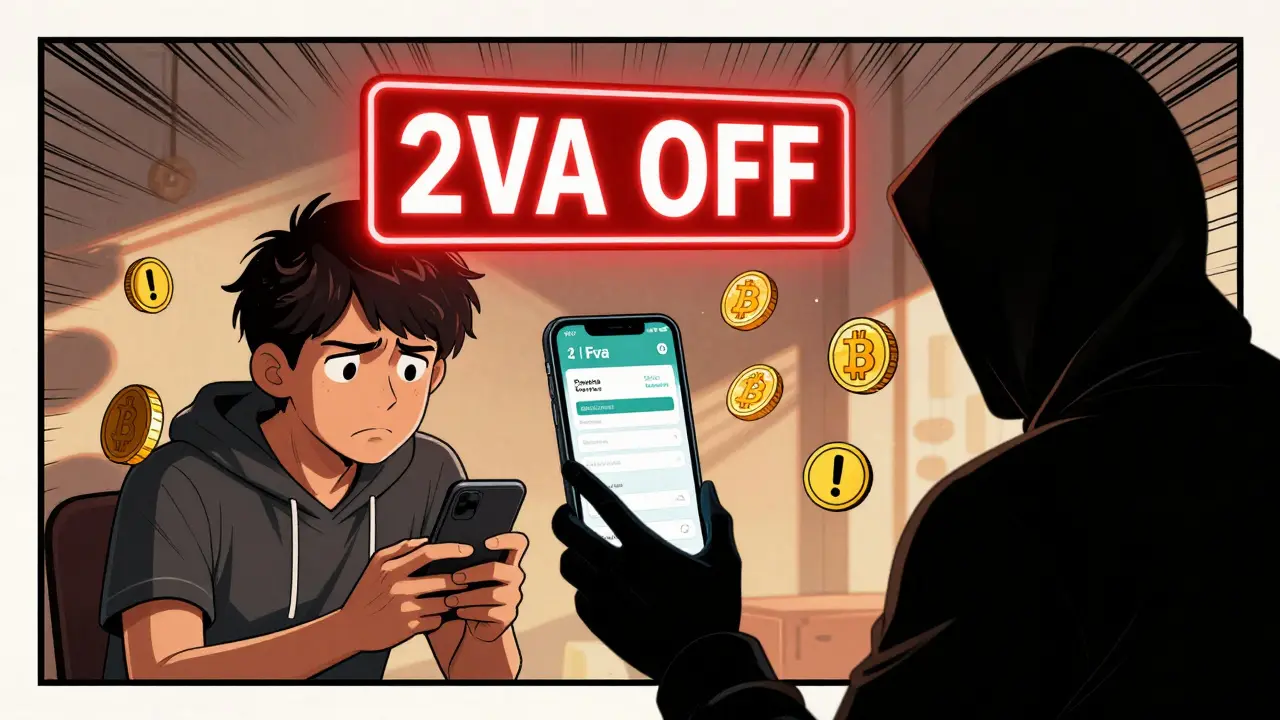
Imagine this: you wake up to a notification that someone just withdrew your entire Bitcoin balance from your exchange account. You didn’t do it. You didn’t lose your password. But they had one thing you didn’t protect: your 2FA. Two-Factor Authentication isn’t just a checkbox on a security page-it’s the difference between keeping your crypto safe and losing it forever. By 2025, every major exchange requires it for withdrawals, and nearly all now demand it for login too. Yet, over a third of users still skip it. Here’s how to do it right-so you never become a statistic.
Why 2FA Is Non-Negotiable for Crypto Accounts
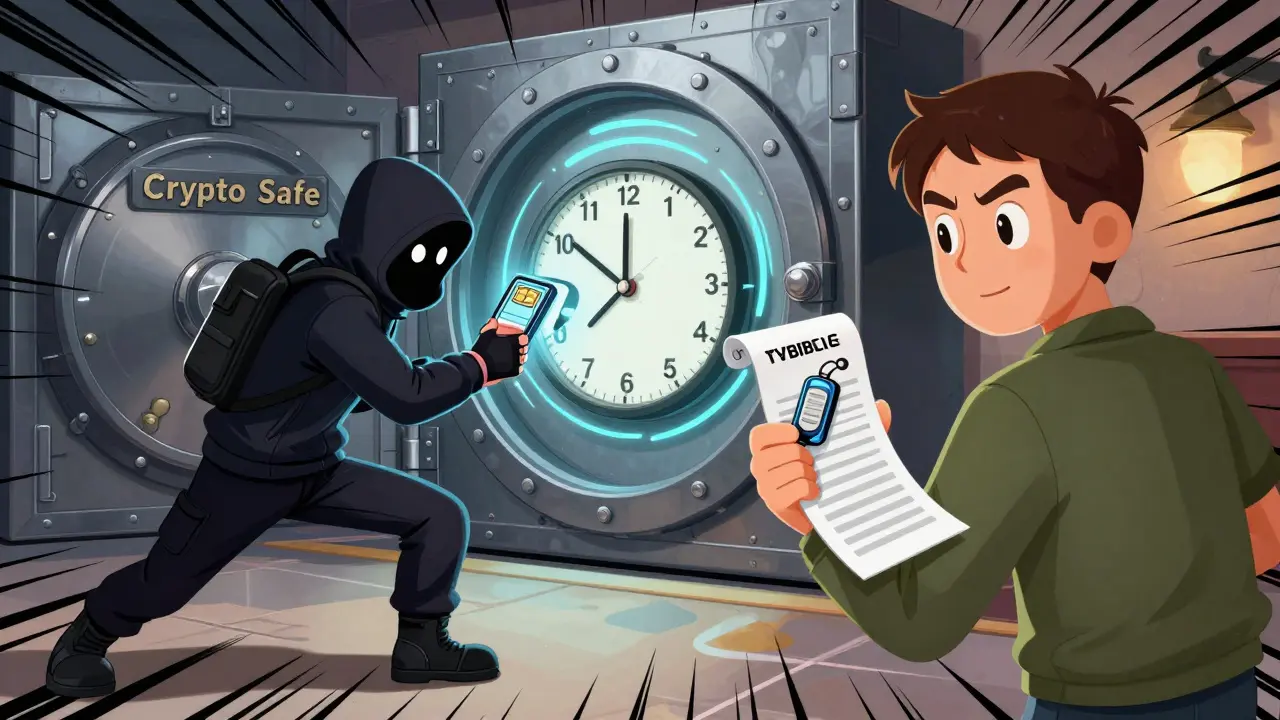
Password-only security is dead in crypto. In 2024 alone, Chainalysis reported that 12% of exchange thefts came from malware that stole 2FA codes from infected phones. But here’s the twist: the real danger isn’t always hackers. It’s you. If you use SMS for 2FA, you’re vulnerable to SIM swap attacks-where criminals trick your mobile carrier into transferring your number to a new device. Since 2020, over $100 million in crypto has been stolen this way, according to Dr. Matthew D. Green from Johns Hopkins University. Even if you use an authenticator app, leaving your phone unlocked or installing sketchy apps can expose your 2FA secrets. The only way to truly protect yourself is to set up 2FA correctly and treat your recovery codes like gold.What Type of 2FA Should You Use?
Not all 2FA is created equal. You’ll typically see two options on exchanges: authenticator apps and SMS. Always pick the app. Here’s why:- Authenticator apps (Google Authenticator, Authy, Microsoft Authenticator) generate time-based codes that refresh every 30 seconds. They don’t rely on your phone number, so SIM swaps won’t touch them.
- SMS 2FA sends codes via text. It’s easy, but it’s also broken. The SS7 protocol used by mobile networks has known vulnerabilities that allow attackers to intercept texts remotely.
Exchanges like WEEX, Kraken, and Binance all explicitly warn against SMS. Crypto.com even blocks SMS for new accounts. If your exchange still offers it, avoid it. Stick with an authenticator app. And if you’re holding serious money-$10,000 or more-consider a hardware key like YubiKey. It’s the gold standard. But for most people, a good authenticator app is enough-if you do it right.
Step-by-Step: How to Enable 2FA on Any Crypto Exchange
The process is nearly identical across exchanges. Follow these six steps carefully:- Log in to your exchange account. Most platforms now require CAPTCHA or email verification before letting you into security settings. Don’t skip this step-bypassing it means you’re not in the right place.
- Go to Security Settings. Look for this under your profile icon (top-right corner). It might be labeled “Security,” “Two-Factor Authentication,” or “2FA.” On Binance, it’s under “Account” → “Security.” On Crypto.com, it’s “Settings” → “Security” → “2FA.”
- Select Authenticator App. Choose “Authenticator App” or “TOTP.” Avoid SMS. If you’re asked to pick between Google Authenticator, Authy, or Microsoft Authenticator-any of them works. They all follow the same TOTP standard.
- Scan the QR code or enter the secret key. Open your authenticator app (e.g., Google Authenticator). Tap “Add Account” → “Scan QR Code.” Point your phone at the code on screen. If the camera fails (it happens on older phones), tap “Enter provided key” and type in the 16-32 character string shown on the exchange. Double-check every letter and number. One mistake here locks you out.
- Enter the 6-digit code. Your app will now show a 6-digit code that changes every 30 seconds. Type it into the exchange. Click “Verify.” If it’s wrong, wait for the next code. Don’t rush.
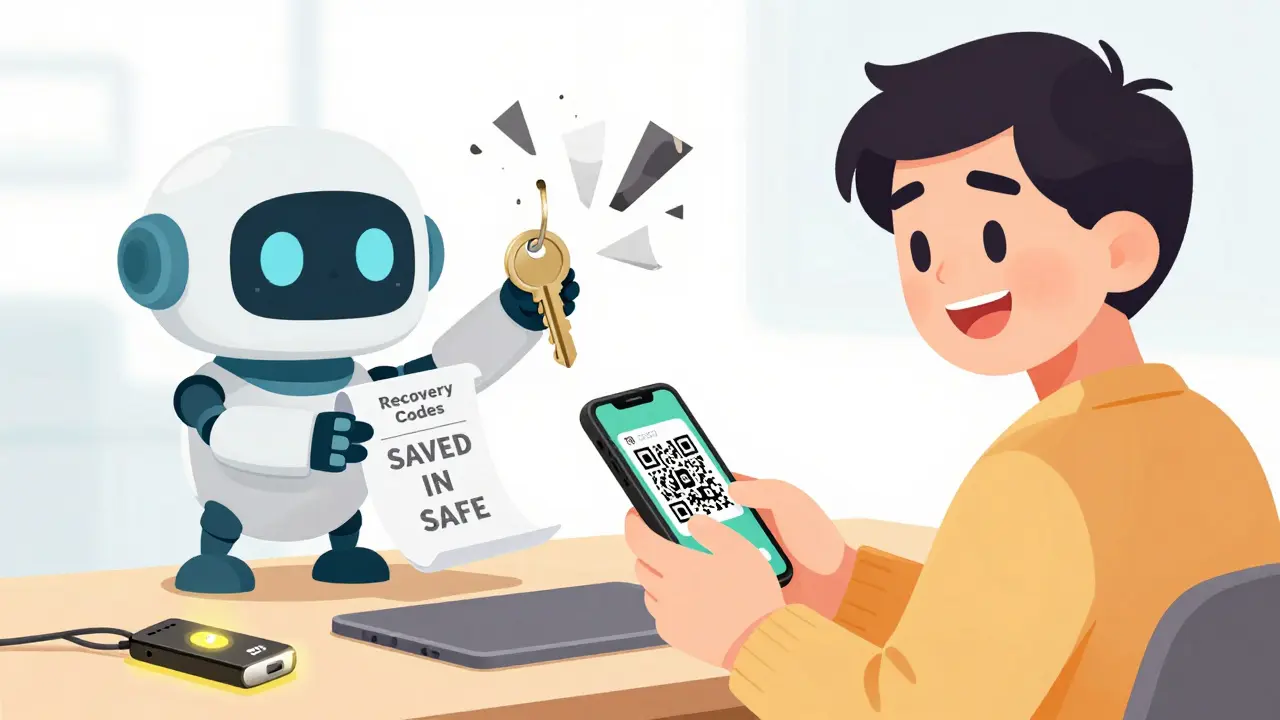
- Save your recovery codes. This is the most important step. The exchange will give you 10-16 alphanumeric codes. Write them down. On paper. In two places. One in your safe, one with a trusted family member. Never store them in your phone, email, or cloud drive. Binance, Kraken, and Crypto.com all say: if you lose these and your phone, they can’t help you. You’re locked out forever.
That’s it. The whole process takes under 5 minutes. But if you’re doing it for the first time, expect to fumble a bit. I’ve seen users spend 20 minutes because they scanned the wrong QR code or saved recovery codes in a Google Doc called “my crypto stuff.” Don’t be that person.
What Happens If You Lose Your Phone or 2FA App?
This isn’t a hypothetical. It happens every day. Someone drops their phone in the toilet. A kid deletes the app thinking it’s a game. A phone gets stolen. If you didn’t save your recovery codes, you’re done. Your crypto is gone. No appeal. No customer service fix. Exchanges don’t reset 2FA without those codes-because if they did, hackers would exploit it.Here’s what to do if you lose access:
- Use your recovery codes. Enter one on the exchange’s 2FA recovery page. It’s usually under “Lost 2FA Device” or “Recovery.”
- If you lost the codes too? You’re stuck. Contact support-but don’t expect help. Binance’s FAQ says: “We cannot disable 2FA without the recovery codes.” Same with Kraken and Crypto.com.
- Prevention is everything. Print your recovery codes. Put one in a fireproof safe. Take a photo and store it on a USB drive in a different location. Tell someone you trust where they are.
One Reddit user, u/LostMyCryptoKeys, lost $8,500 after his phone cracked and he threw out the recovery paper. He wrote: “The same security that protects from hackers can lock you out forever if you’re not careful.” That’s the truth.
Common 2FA Mistakes (And How to Avoid Them)
Even people who enable 2FA mess it up. Here are the top mistakes-and how to dodge them:- Mistake: Using SMS. Solution: Always pick authenticator app.
- Mistake: Saving recovery codes on your phone or in Notes. Solution: Paper only. No digital backups.
- Mistake: Not testing 2FA before depositing. Solution: After setup, log out, then log back in. Make sure the code works.
- Mistake: Enabling 2FA on the app but not the exchange. Solution: Crypto.com and others have separate 2FA for app and web. You need both. Check your settings on both.
- Mistake: Sharing recovery codes with “tech support.” Solution: No legitimate exchange will ever ask for them. If someone does, it’s a scam.
According to Trustpilot reviews, 42% of 2FA complaints are about QR code scanning failures. If it doesn’t work, manually enter the key. It’s slower, but it’s more reliable.
What’s Next? The Future of Crypto Authentication
Authenticator apps aren’t perfect. They’re tied to your phone. If your phone gets hacked, so does your 2FA. That’s why the next wave is coming: passkeys and hardware security keys.Passkeys use your device’s fingerprint or face ID to log in-no codes, no apps. Kraken and Coinbase are testing them now. They’re built on FIDO2 standards, which are unhackable by phishing. If you’re tech-savvy and hold large amounts, get a YubiKey. Plug it in, tap it, and you’re in. No code needed.
But here’s the reality: for 95% of users, a well-set-up authenticator app with paper recovery codes is still the best balance of security and simplicity. You don’t need the latest tech to stay safe-you just need to do the basics right.
Final Checklist: Did You Do It Right?
Before you close this page, run through this:- ✅ I used an authenticator app, not SMS.
- ✅ I scanned the QR code or manually entered the secret key.
- ✅ I verified the 6-digit code from the app.
- ✅ I wrote down all recovery codes on paper.
- ✅ I stored copies in two separate physical locations.
- ✅ I tested logging out and back in.
- ✅ I did NOT save recovery codes anywhere digital.
If you checked all seven, you’re safer than 70% of crypto users. That’s not bragging. That’s just how few people actually do it right.
Can I use the same 2FA app for multiple crypto exchanges?
Yes. Google Authenticator, Authy, and Microsoft Authenticator all support multiple accounts. Just add each exchange as a separate entry in the app. Each one will generate its own unique 6-digit code. Don’t worry about mixing them up-the app labels each one with the exchange name.
What if my phone’s clock is wrong and 2FA codes don’t work?
TOTP codes rely on your phone’s time being accurate. If codes keep failing, check your phone’s date and time settings. Turn on “Set automatically” in your phone’s settings. On iOS, go to Settings → General → Date & Time. On Android, go to Settings → System → Date & Time. If it’s off by more than 30 seconds, the codes won’t match the exchange’s server.
Is Authy safer than Google Authenticator?
Authy offers encrypted cloud backups, so if you lose your phone, you can restore your 2FA codes on a new device. Google Authenticator doesn’t back up codes at all. That’s a trade-off: Authy is more convenient if you’re prone to losing phones, but it’s slightly less secure because your codes are stored in the cloud. For maximum security, use Google Authenticator and manually back up your secret keys. For convenience, Authy is fine.
Why do some exchanges require 2FA for login and others only for withdrawals?
It’s about risk levels. Exchanges like Binance require 2FA only for withdrawals because they assume login is protected by password and CAPTCHA. But exchanges like Crypto.com require 2FA for login too-because they’ve seen more account takeovers starting with stolen passwords. The trend is moving toward full 2FA for login. If your exchange doesn’t require it yet, enable it manually. It’s an extra layer of protection.
Can I turn off 2FA later if I change my mind?
Most exchanges let you disable 2FA, but only after a waiting period-usually 24 to 72 hours. This is a safety feature to prevent hackers from quickly disabling it after stealing your password. On Binance, you need to submit a request and wait 72 hours. On Kraken, it’s 48 hours. Never disable 2FA unless you’re replacing it with something stronger, like a hardware key.
